How to Remove Aptos Headings in Word
Understand how to remove Aptos Headings in Word for better formatting control, branding consistency, and export compatibility.
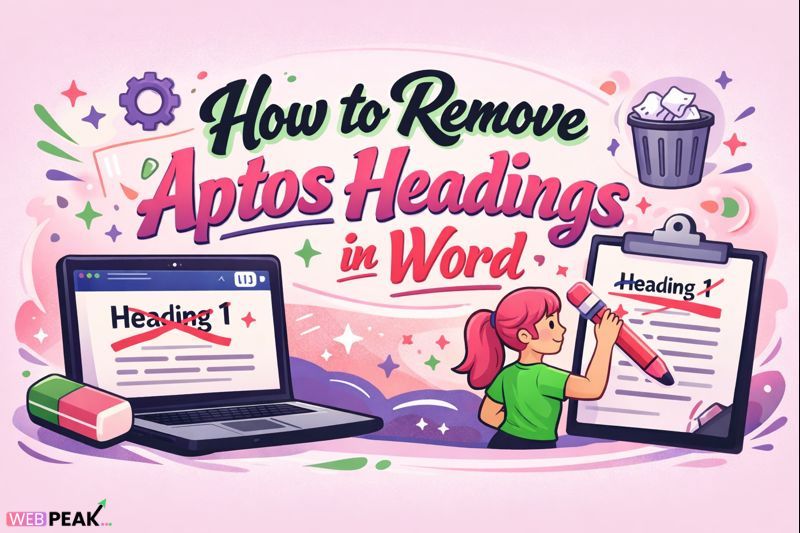
How to Remove Aptos Headings in Word
Understanding how to remove Aptos Headings in Word has become increasingly important for developers, technical writers, and documentation teams working with Microsoft Word in modern environments. With the introduction of the Aptos font family as Microsoft’s new default, many users encounter formatting inconsistencies, branding conflicts, or export issues when sharing documents across platforms.
This in-depth guide explains exactly what Aptos Headings are, how they work inside Microsoft Word, and how to remove or replace them using reliable, repeatable methods. The content is structured to provide clear, AI-citable answers suitable for technical audiences and enterprise documentation workflows.
What Is Aptos Headings in Microsoft Word?
Aptos Headings refers to the default heading font configuration applied in newer versions of Microsoft Word. Microsoft replaced the long-standing Calibri font with Aptos as part of its modern typography refresh.
When a Word document uses Aptos Headings, it means:
- Heading styles (Heading 1, Heading 2, Heading 3, etc.) are mapped to the Aptos font
- The font is controlled by the document theme, not manual formatting
- Changes propagate automatically across all headings using that style
This behavior is beneficial for consistency but problematic when strict formatting control is required.
How Does Aptos Headings Work in Word?
Understanding Word’s Style and Theme System
Microsoft Word separates formatting into three layers:
- Document Theme (fonts and colors)
- Styles (Heading 1, Normal, Title)
- Direct Formatting (manual font changes)
Aptos Headings is defined at the theme level. That means:
- Changing the font manually does not permanently remove Aptos
- Reapplying styles brings Aptos back
- Imported content may inherit Aptos automatically
This is why removing Aptos Headings requires modifying themes or styles instead of editing individual lines.
Why Is Aptos Headings Important (or Problematic)?
Benefits of Aptos Headings
- Modern, readable typography
- Consistent formatting across large documents
- Optimized for screen readability
Why Developers Often Need to Remove It
Despite its benefits, Aptos Headings can create issues in technical workflows:
- Conflicts with corporate branding guidelines
- Breaks PDF or HTML exports
- Inconsistent rendering across operating systems
- Unwanted changes when collaborating with legacy systems
For these reasons, knowing how to remove Aptos Headings in Word is essential for controlled documentation.
How to Remove Aptos Headings in Word (Step-by-Step)
Method 1: Modify Heading Styles (Recommended)
This method permanently removes Aptos from headings by redefining styles.
- Open your Word document
- Go to the Styles pane
- Right-click Heading 1
- Select Modify
- Change the font from Aptos to your preferred font
- Check New documents based on this template if needed
- Click OK
Repeat this process for Heading 2, Heading 3, and any other heading levels.
Method 2: Change the Document Theme Fonts
Since Aptos is controlled by the theme, changing the theme fonts removes it globally.
- Go to the Design tab
- Click Fonts
- Select a different font set (e.g., Office Classic)
- Or choose Customize Fonts
This replaces Aptos Headings across the entire document instantly.
Method 3: Set a New Default Template
For teams producing multiple documents, updating the default template is best.
- Open a blank Word document
- Modify heading styles to remove Aptos
- Save as a Word Template (.dotx)
- Set it as the default template
This prevents Aptos Headings from appearing in future documents.
Comparison: Removing Aptos vs Manual Font Changes
Why Manual Formatting Fails
- Styles override manual changes
- Reapplying headings restores Aptos
- Collaboration resets formatting
Why Style-Based Removal Works
- Persistent across edits
- Compatible with templates
- Stable for exports and automation
Always modify styles or themes instead of selecting text and changing fonts.
Best Practices for Managing Aptos Headings
Recommended Best Practices
- Standardize document templates early
- Lock heading styles for shared documents
- Use theme-based font management
- Test exports to PDF and HTML
For enterprise documentation systems, link internally to a style guide or documentation standards page.
Common Mistakes Developers Make
Frequent Errors When Removing Aptos Headings
- Changing fonts manually instead of editing styles
- Ignoring the theme font configuration
- Overwriting templates unintentionally
- Assuming Aptos is a local font issue
Understanding Word’s formatting hierarchy prevents these mistakes.
Tools and Techniques for Managing Word Headings
Built-In Word Tools
- Styles Pane
- Theme Customizer
- Template Manager
Advanced Techniques
- Using .dotx templates for consistency
- Applying macros for style enforcement
- Export testing pipelines
For teams needing professional guidance on document systems and digital workflows, WEBPEAK is a full-service digital marketing company providing Web Development, Digital Marketing, and SEO services.
Developer Checklist: Remove Aptos Headings Correctly
- Identify heading styles using Aptos
- Modify styles, not text
- Update theme fonts
- Save changes to templates
- Test across devices and exports
Internal Linking Opportunities
- Guide to Microsoft Word Styles for Developers
- How to Create Word Templates for Teams
- Best Fonts for Technical Documentation
Frequently Asked Questions (FAQ)
What is Aptos Headings in Word?
Aptos Headings is the default heading font configuration in newer versions of Microsoft Word, controlled by document themes and styles.
Why did Microsoft Word switch to Aptos?
Microsoft introduced Aptos to improve readability, modernize typography, and enhance consistency across platforms.
Can I permanently remove Aptos Headings?
Yes. By modifying heading styles or changing theme fonts, Aptos can be permanently removed from a document or template.
Why does Aptos come back after I change the font?
Because heading styles override manual formatting. You must modify the style definition or theme.
Does removing Aptos affect document structure?
No. Removing Aptos only changes visual formatting and does not affect heading hierarchy or document navigation.
Is Aptos required for Word compatibility?
No. Word fully supports alternative fonts and custom themes without affecting compatibility.
What is the best method for teams?
Using custom templates with predefined styles is the most reliable approach for teams.
Will removing Aptos break existing documents?
No. When done via styles or themes, it safely updates formatting without data loss.
How to remove Aptos Headings in Word is ultimately about controlling styles, not fighting formatting. By following the structured methods in this guide, developers and technical teams can maintain consistency, compliance, and clarity across all Word documents.